
Terminal setup
How to configure your mCashPoint Pin Pad
Follow these six steps to pair your Pin Pad, activate it and start taking withdrawals and transfers. You will need an Android phone and an activation code from our office.
-
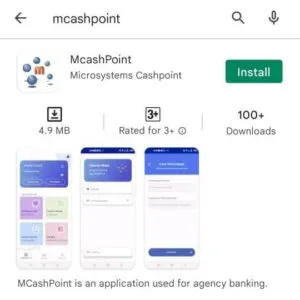
Download the app from the Google Play Store
If you have not already installed it, download the mCashPoint app from the Google Play Store on your Android device. Keeping the app up to date gives you the best experience.
Locate and tap the Play Store icon
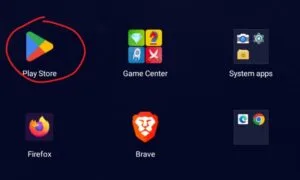
Search for mCashPoint and install it
-
Pair the Pin Pad over Bluetooth
The Pin Pad connects to your Android phone over Bluetooth.
Open your phone's Bluetooth settings
- Swipe down from the top of the screen.
- Touch and hold the Bluetooth icon.
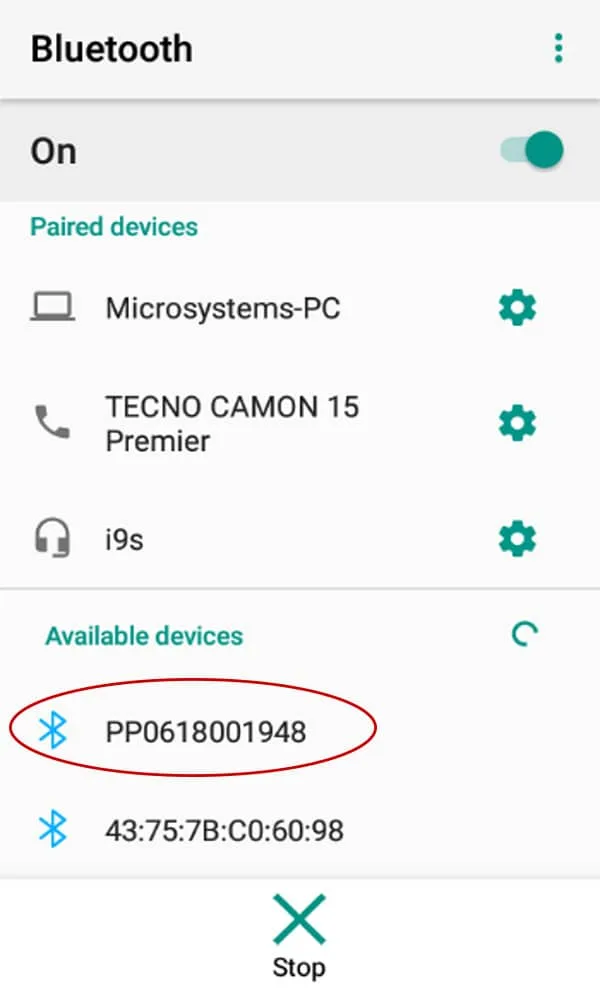
Pair the Pin Pad — its name is the serial number
- TapPair new device .
- If you cannot see it, check underAvailable devices , or tap More then Refresh .
- Tap the device whose name matches the serial number on the back of your Pin Pad.
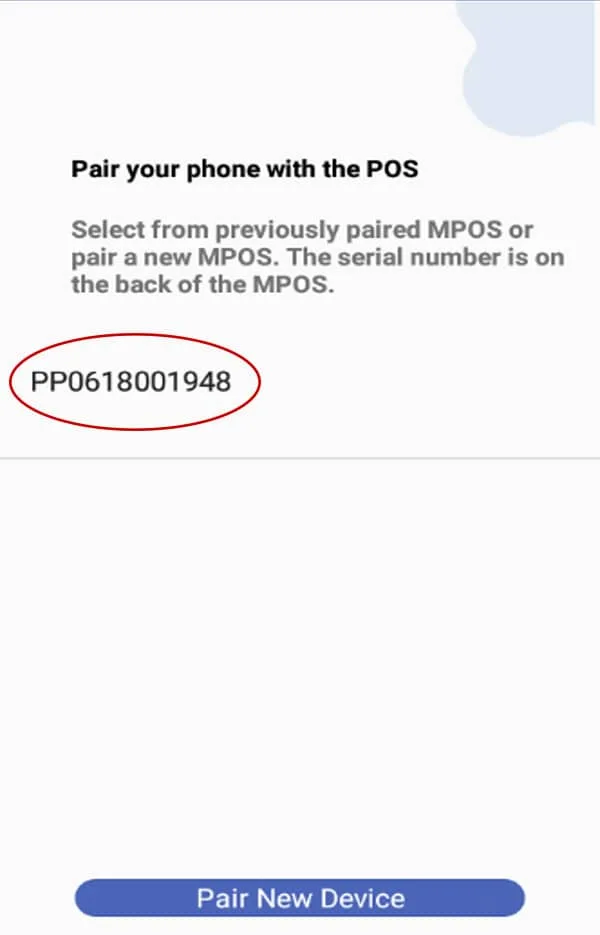
Select the serial number in the app
-
Enter the activation code
Request an activation code from the office
You will need an activation code to continue. Contact our office and the team will provide one.
Enter the code and tap Proceed
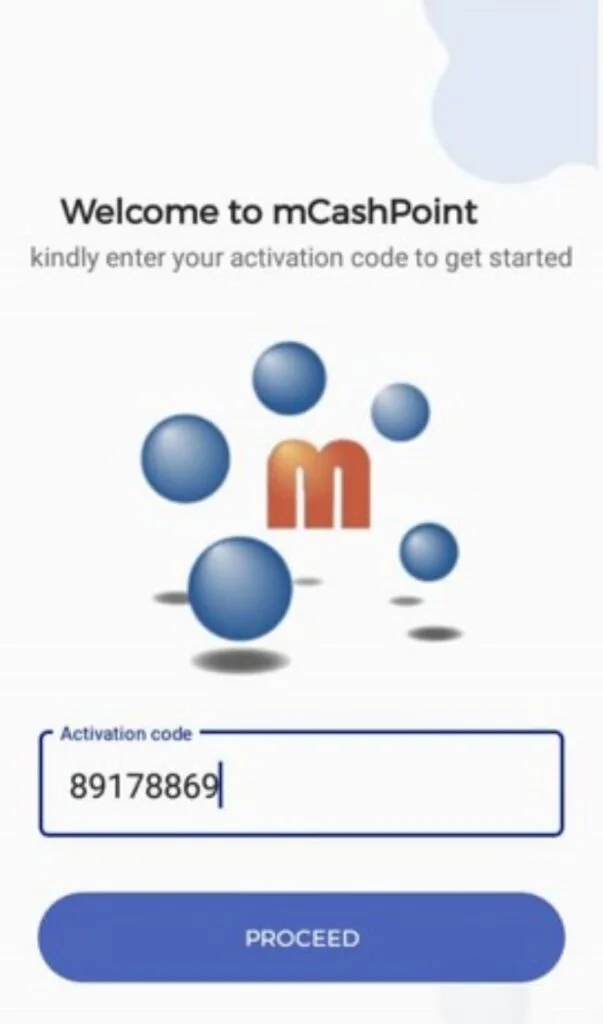
When the success message appears, tap Continue
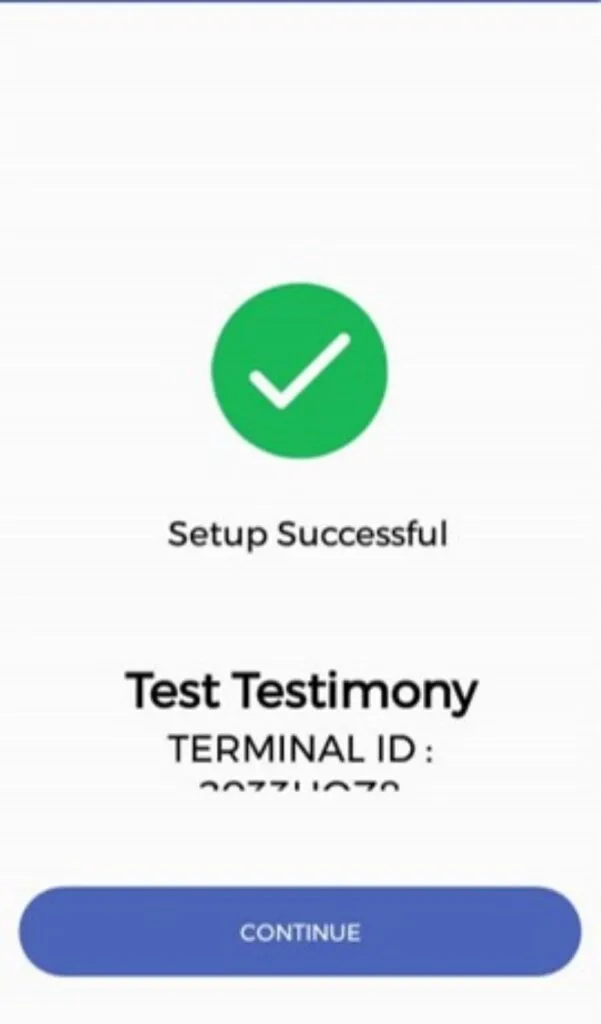
-
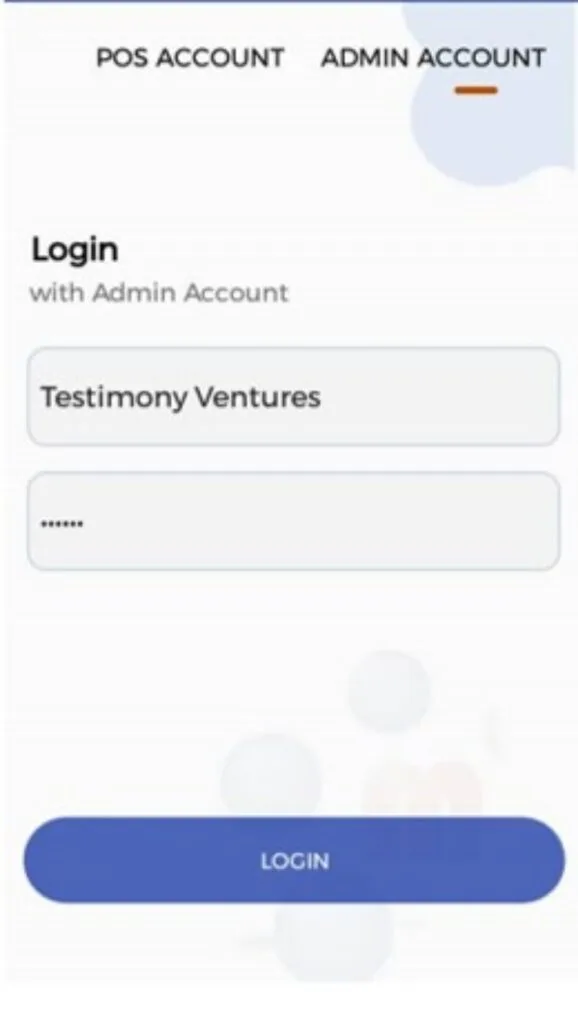
Enter your username and password
Log in with your username
Enter the username our team gave you. The default password is123456 . Tap Login .
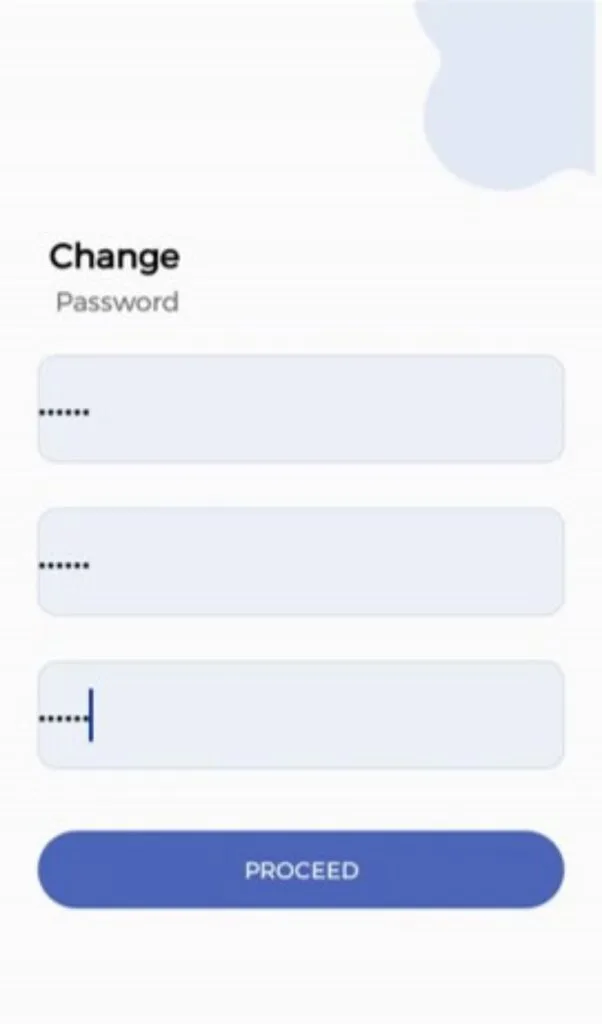
Set your admin password
Enter the default password123456 , then choose your own six-digit password. This becomes your Admin Password — please keep it somewhere safe.
-
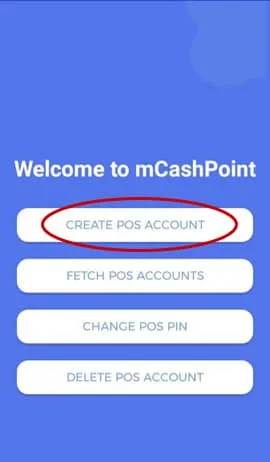
Create your POS account in the app
Tap Create POS Account
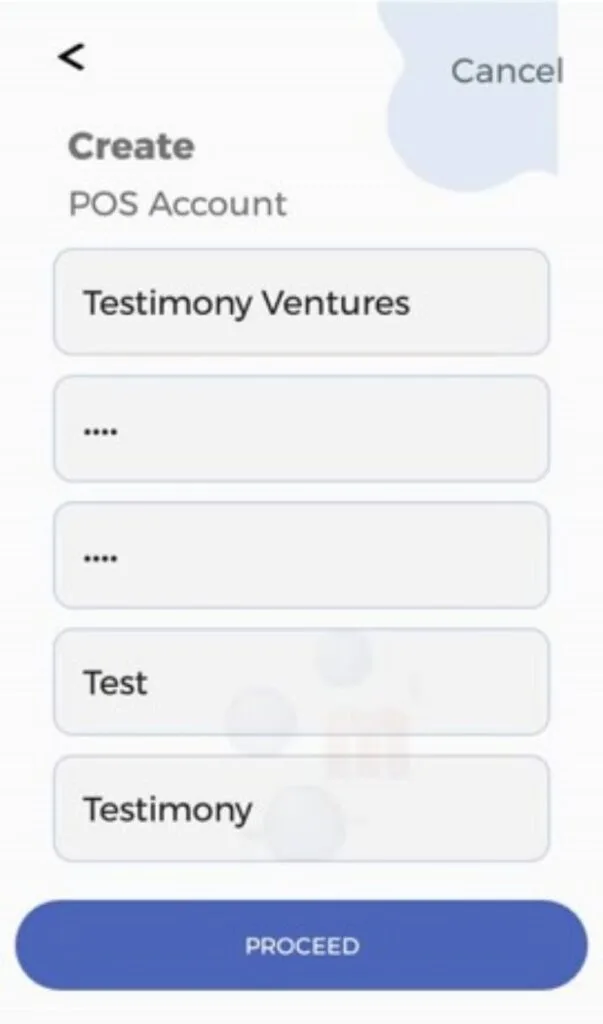
Complete the fields and tap Proceed
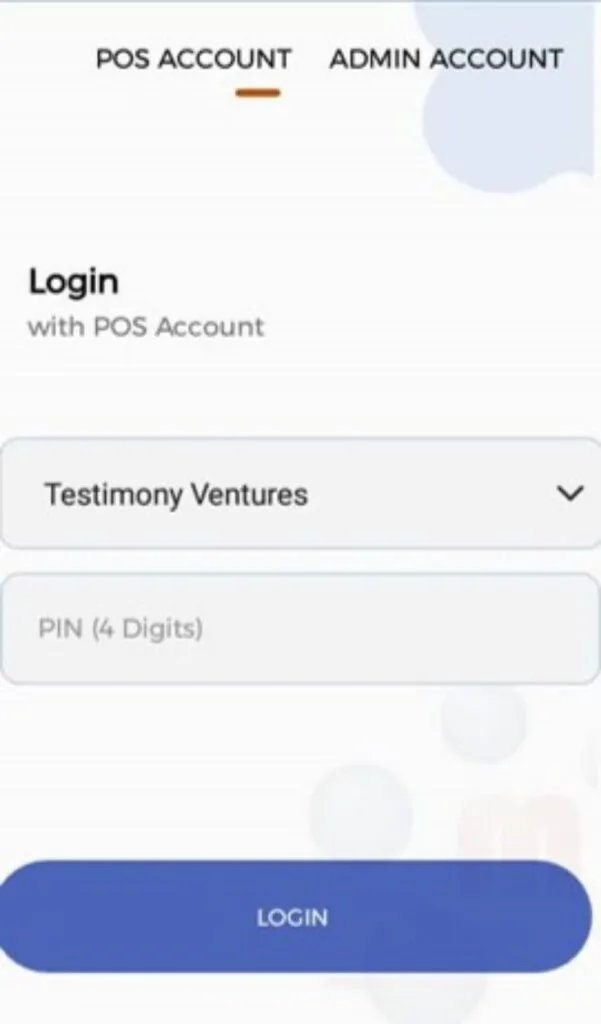
Log in with your username and four-digit PIN
-
Allow the app's permissions
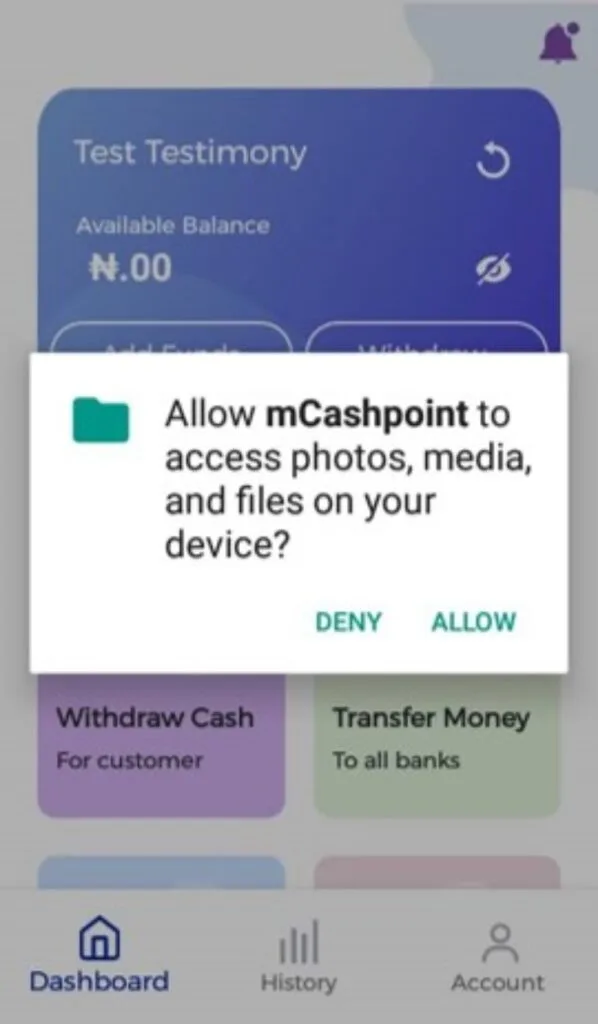
The app needs a few Android permissions to work. TapAllow on each dialog that appears.
Tap Allow on each permission request
You are all set
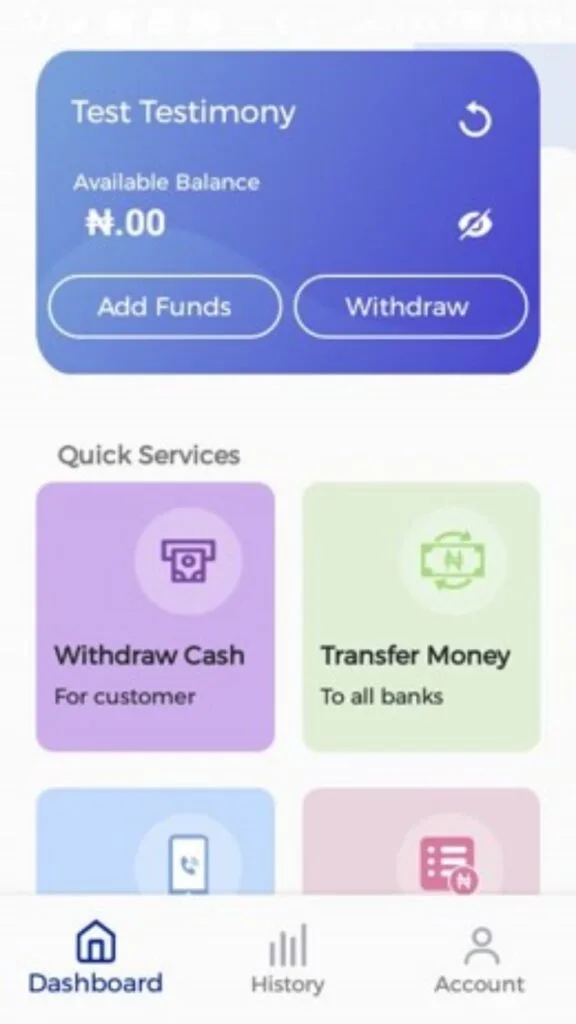
That is it — you can now take withdrawals and transfers with the mCashPoint app and Pin Pad.
Need a hand getting set up?
Our team can walk you through activation and answer any questions about your Pin Pad.